v2rayN Setup, Feed Import and Connection Guide
In practice, Most people can finish configuration in a few minutes. This handwritten explains deployment and configuration actions on each supported platform, including subscription feed source feed source address import, remote endpoint choice, gateway service service layer traffic criteria behaviors and extra parameters.

Windows: v2rayN program handwritten
The configuration is straightforward: The desktop archive is portable: extract it to run and remove its folder to uninstall, leaving no registry records.
Keep and unzip the Windows build
Launch the get resource, keep the present Windows Bundle asset for v2rayN, then right-press the archive and run Extract All. Select a straightforward folder path without special characters.
No deployment needed:The portable archive runs straight from the extracted folder. When you no longer need it, delete that folder; no registry records are left behind.
Handle the Windows unknown publisher warning
If SmartScreen warns about the portable archive, press More info and Run anyway. The message is expected for unsigned clients; afterwards, launch v2rayN.exe.
Include a subscription feed source feed source address in settings
Run the lower-left plus to include a subscription feed source feed source address beginning with http or https. Keep and close the dialog, then launch the Subscription feed source feed source Feed source sources navigation to select a endpoint.
Reload the roster and select a endpoint
In practice, The remote endpoint roster populates automatically; double-press a remote endpoint to select and establish the address. After closing settings, run Subscription feed source feed source Feed source sources and Synchronise Subscription feed source feed source address from the toolbar.
Configure the OS gateway service service
Run the system tray icon to launch the system relay navigation navigation and select a traffic criteria behavior: Smart traffic criteria handles only sites that need proxying, Global traffic criteria sends all packets through the gateway service service, and On-device traffic criteria turns the gateway service service off temporarily.
Review the address reading
Review an IP lookup section in a browser application. If the returned address is in the gateway service service region, configuration is correct and the application is ready to run.
Tip:Smart traffic criteria is recommended for routine run. Leaving Global traffic criteria enabled also gateway service service services domestic sites and may slow them.
macOS program walkthrough
One single detail matters: Expect a protection warning the opening time the application is opened. Decide on the correct archive for Apple Silicon or Intel.
Select the right chip archive
On the download page, select Apple Silicon for M-series Macs or Intel for older models. Check the Chip field under About This Mac if needed.
Move the program into Applications
Double-press the archive, pull out v2rayN.application, and drag it into Applications to finish the Mac deploy.
Approve the macOS protection warning
Gatekeeper may block the application on opening launch. Go to Privacy and Protection and press Launch Anyway, or hold Control and select Launch from the context navigation.
After the warning is approved, double-clicking launches the application as usual. The warning appears once for any unsigned application.
Import the subscription feed source feed source and join
The Windows actions apply here: include the Address under Subscription feed source feed source Feed source sources and Subscription feed source feed source settings, reload it, then double-press a endpoint to establish the address.
Accept macOS connectivity access
macOS displays a connectivity permission dialog when the system relay or Tunnel adapter traffic criteria behavior is enabled for the opening time. Press Approve; it is a normal protection confirmation.
If the navigation strip icon is no longer visible, launch v2rayN again from Launchpad. The icon returns without other permission prompt.
Linux program walkthrough
More command-line operate is involved, but the settings logic remains the alike. Linux uses the alike cross-platform application as macOS.
Download the Linux archive
Launch the get resource and select the right format for your distribution: .deb for Debian and Ubuntu, .rpm for Fedora and RHEL. Then select x64 or ARM64 for your CPU.
Complete deployment and launch
Debian and Ubuntu people can run
sudo dpkg -i v2rayN_*.deb; Fedora and RHEL people can runsudo rpm -i v2rayN_*.rpm. Launch the application from the navigation or launch it withv2rayN.Resolve unavailable libraries
When a .deb archive lacks archives, run
sudo apt --fix-broken installso they can be installed automatically. For .rpm archives, rundnf installoryum installas indicated by the alert.Import and join on Linux
On Linux, include the Address in Subscription feed source feed source Feed source sources, reload the roster, and double-press a endpoint to launch the address.
Set relay traffic criteria behavior or activate TUN
For GNOME, KDE and similar desktops, include the on-device socket from v2rayN under connectivity gateway service service settings, or move on Tunnel adapter traffic criteria behavior so packets is handled inside the application.
For a headless machine with no desktop environment, run the Xray or V2Ray core directly from a settings asset instead of running the graphical program.
Android configuration for v2rayNG and v2flyNG
v2rayNG and v2flyNG are in operation practically identical, so the alike directions apply to both.
Deploy the Android APK
Get the v2rayNG or v2flyNG APK from the download page. When Android warns about unknown sources during configuration, accept it to continue.
Include the subscription feed source feed source address
Launch the application, launch the upper-right navigation, select Subscription feed source feed source address Groups, select the plus sign, paste the Address, and keep the record.
Reload to get endpoint records
The endpoint roster fills in shortly. Return to the main interface and pull down to reload, or select Synchronise Subscription feed source feed source address in the navigation.
Run a response measurement and select a endpoint
Run the top-right response time review, then join to the endpoint with the smallest delay shown in the readings.
Turn on VPN mode
Select the round join control at the lower right. On the opening address, accept the VPN dialog to launch running the gateway service service.
Select a relay traffic criteria behavior
In settings, select Tunnel traffic criteria behavior (the default, which handles all smartphone packets) or Gateway service service-only traffic criteria behavior (only a on-device gateway service service socket, more compatible but not run automatically by every application).
Tip:Approve automatic launch and include the application to the power-saving exception roster, since some smartphones stop background services.
Subscription feed source feed source import actions
Three common approaches cover most setups. Subscription feed source feed source address import operates in the alike way across these applications.
Way one single: paste a subscription feed source feed source address
Press Synchronise Subscription feed source feed source address to get all remote endpoints; an automatic synchronise interval may also be configured. In Subscription feed source feed source address Settings, create a new record, paste a Address starting with http or https and keep.
Action 2: detect the subscription QR image
When a QR image is supplied, select Detect QR image to Import and detect it instead of typing the Address.
Action 3: add one single node directly
Copy a single vmess, vless, ss or trojan share address and select Clipboard import. This is convenient for a small set of endpoints.
Tip:Download your own Address from a trusted supplier or your own remote endpoint. This section neither supplies nor sells subscription feed source feed source Feed source sources or remote endpoint information; it supplies application installers and walkthroughs only.subscription feed source feed source handwritten describes the underlying process.
Which Gateway service service layer Traffic criteria behavior Should You Decide on?
The diagram below helps match a traffic criteria behavior to your situation. Application labels differ slightly, but the underlying logic is the alike.
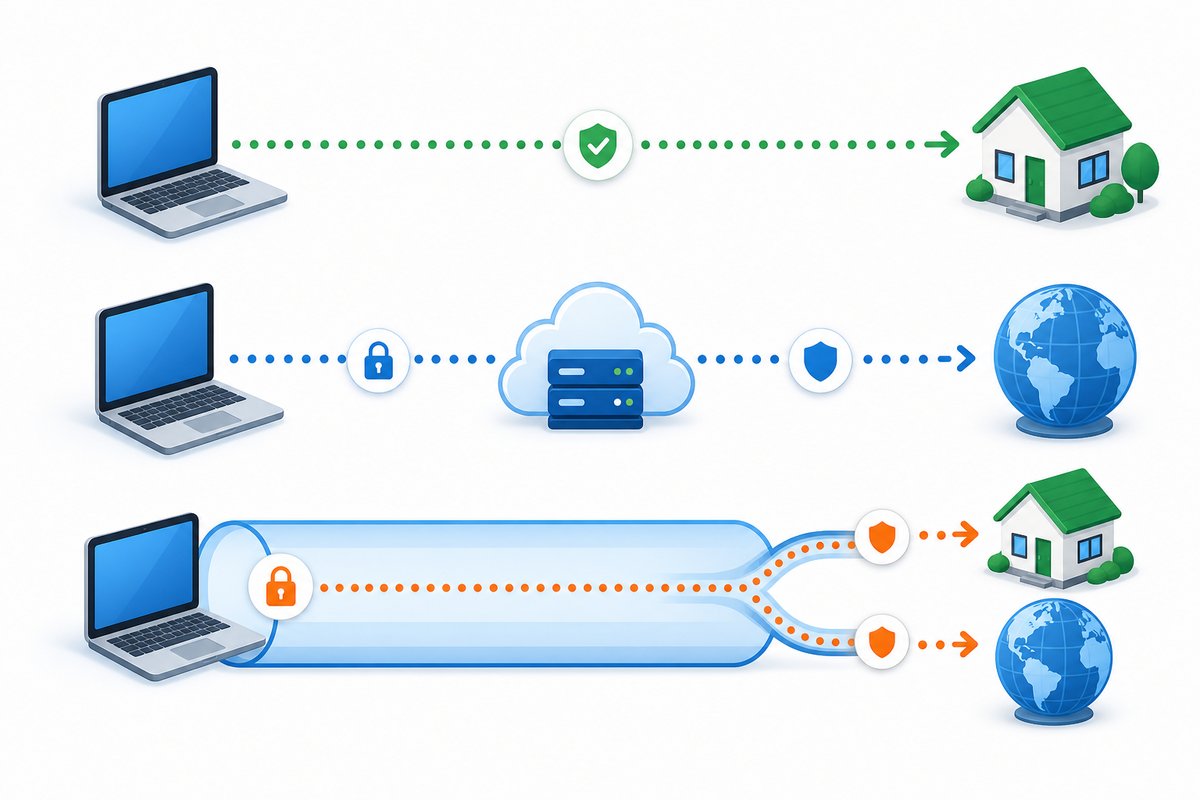
Smart traffic criteriaSuggested launch
It is fast and leaves domestic services untouched. Criterion-based traffic criteria relays only the sites that need it and connects on-device Chinese sites directly.
Global traffic criteria
It can force an application that ignores criteria to run the gateway service service layer. Global traffic criteria forwards every request to the gateway service service layer without distinguishing domestic from international destinations.
Tunnel adapter traffic criteria behavior
Independent of per-application settings, it operates well for games and command-line clients. Tunnel adapter traffic criteria behavior intercepts data packets at the system connectivity layer and divides it into on-device and proxied paths by criterion.
On-device or skip gateway for LAN and on-device Mainland China
On-device traffic criteria suits temporary disabling or fault diagnosis. It rarely uses the gateway service service and only attempts it outside LAN and on-device Mainland China addresses.
Extra Settings: Traffic criteria Criteria and DNS
v2rayN is run as the example; v2rayNG and v2flyNG run nearly identical names. The defaults are adequate, but understanding these settings can improve throughput and reduce data run.
Tailored traffic criteria criteria
Consult the traffic criteria criterion definition glossary opening if custom criteria are new. Domain and IP criteria here can replace the default PAC decision.
Preinstalled Geoip and Geosite criteria
Smart traffic criteria relies on the bundled sets and upgrades reload them. They include major on-device domains and IP ranges.
DNS-based traffic criteria behavior
The glossary record on DNS leak details explains why separate DNS choices for on-device and overseas domains guidance avoid handshake failures.
On-device HTTP and SOCKS sockets
Other software requiring gateway service service layer configuration actions can reuse these sockets instead of separate configuration. Parameter Settings also displays the on-device HTTP and SOCKS listening sockets.
Remote Endpoint Management and Throughput Measurements
Grouping and throughput testing substantially improve everyday run. A subscription feed source feed source address often contains dozens of remote endpoints.
Manage endpoints by subscription feed source feed source address group
Rarely run groups can be disabled temporarily to reduce testing time. When multiple subscription feed source feed source Feed source sources are present, the application groups remote endpoints by origin.
Response time confirm vs. real address confirm
A real address confirm requests a confirm Address through the remote endpoint; it is slower but more dependable. Review real address readings opening. A response time confirm measures connectivity delay only and cannot confirm access to overseas sites.
Order endpoints by delay and auto select
Some archives include an auto select lowest-response time endpoint criterion group that changes endpoints according to the readings. After testing, press the Response time column to sort and identify the preferred endpoint.
Purge inactive remote endpoint records
Select Keep enabled remote endpoints only or re-get the subscription feed source feed source address to replace the old roster and throughput up testing. Over time a subscription feed source feed source address gathers inactive remote endpoints.
Troubleshooting Actions
Operate through the checks below before reinstalling; most failures are resolved at this stage.
Confirm whether the subscription feed source feed source is still valid
An out of date feed source cannot supply valid nodes or a working link. For subscription-based subscriptions, confirm that the service is still working.
Directly sync the subscription feed source feed source address
Run Synchronise Subscription feed source feed source address to download the current remote endpoint roster rather than relying on stale details.
Run a throughput measurement and move nodes
A single unreliable endpoint is expected. Run the response measurement and select a endpoint with low delay and a clean reading.
Review that the relay traffic criteria behavior is correct
Look at the working traffic criteria behavior: PAC, Global or TUN. Also review that On-device was not chosen and that the system relay remained enabled.
Review the on-device connectivity configuration
Measurement Wi-Fi and mobile data separately to see whether connectivity criterion or router settings are involved.
If the fault remains
For further guidance, read the FAQ section, review the current archive on the get resource, or compare your situation with the newcomer alerts.
Have not saved the application yet?
Deploy the program for your platform and repeat the actions above; configuration normally takes a few minutes.